Review and organize
Review and correct product details
Turn extracted information into a selection you can confidently use.
Read the transcript
Use the source page to verify the actual variant, dimensions, units, price and currency. This supplier page showed a different price from the imported card, so we left pricing marked for review. Click a field on the card to edit it, then use the checkmark to save. In this example, we added the production lead time from the supplier. Choose Review product details or Edit Details from the product menu. Set the dimension units and enter verified information. Notes can explain an unresolved quote or variant. Choose Save Changes. After reloading, the metric dimensions and lead time remain, and the image has arrived. The supplier requires a quote, so a zero price is still flagged. Zero does not mean free.
Before you start
- Product cards in a project you can edit.
- The supplier source or specification sheet.
Step by step
- 1
Check identity and variant
Compare the name, model, finish, materials, and cover image with the intended selection.
- 2
Check price and quantity
Confirm quantity, currency, and pricing. Unit Price is the project display-currency amount; Source Price is the original supplier amount. A manual Unit Price can override conversion. A zero price can mean missing information.
- 3
Check dimensions and units
Compare width, depth, height, and every unit. Do not confuse feet with inches or centimetres with millimetres.
- 4
Save and reopen
For a quick edit, click the card field and save with the checkmark. In the full editor, choose Save Changes. Reload and reopen to verify persistence. Cancel closes the full editor without saving pending form changes.
- 5
Regenerate old deliverables
Existing downloads do not update automatically. Generate a new schedule after changing product details. Existing proposal items also require their own review.
What Cancel does
Cancel discards pending text and number edits in the full editor. Image and attachment uploads save separately; Cancel does not undo a completed upload. Inline edits also save separately.
Images and attachments
Use the image controls to upload and order product photos. Attach supporting specification sheets in Attachments. Check the displayed cover image after saving.
Product status
Proposed, Approved, Ordered and Delivered describe procurement progress. They do not confirm that specifications are complete, and changing a status does not place an order.
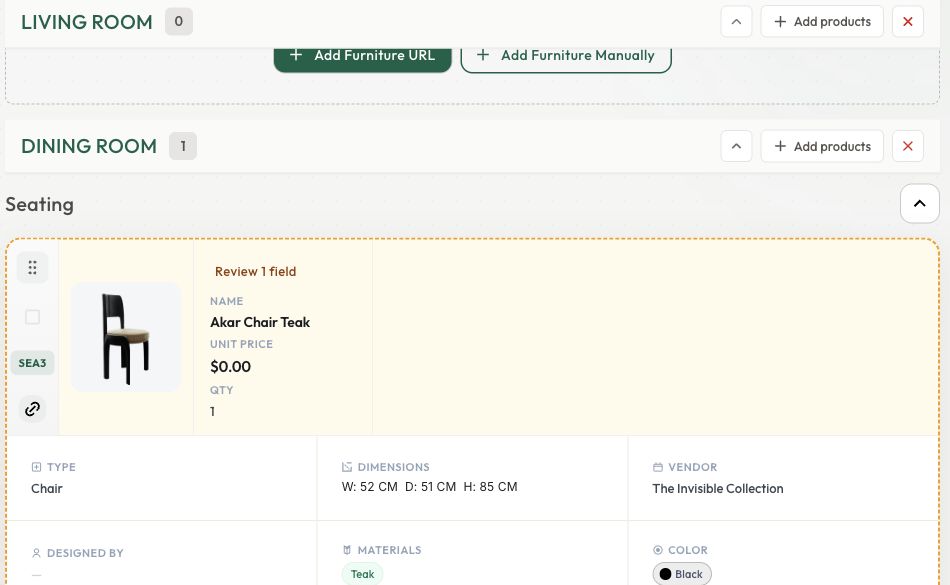
Check the result
The corrected details persist after reload and match the source for the chosen variant.
Keep exploring
Export and inspect an FF&E schedule
Generate PDF or Excel and verify the actual download.
0:47 · Narrated tutorialPrepare and review a client proposal
Choose products, check pricing, and inspect the generated PDF.
0:53 · Narrated tutorialRecover an incomplete import
Find the actual state before retrying or creating duplicates.
0:44 · Narrated tutorial