Start with a real project
Set up projects and rooms
Give your selections a clear home before importing.
Read the transcript
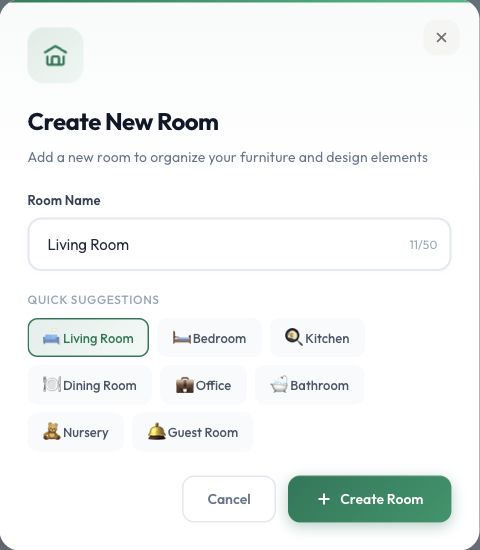
Choose New Project and give the project a name you will recognize later. We are using Juniper House as a fictional training project. Choose Create project. The new project offers several schedule types. Choose Furniture for this example. You can use the other schedule tabs as the project grows. Choose Add Room, then use a room suggestion or enter your own name. Choose Create Room to add the destination. The room now appears inside the project. Check the project name, schedule and room before adding products. In an empty room, you can start with a URL or add a product manually.
Before you start
- Owner access to create a project; edit access to work in an existing one.
Step by step
- 1
Create and open the project
Choose New Project or Add New Project, enter the name, and choose Create project. Open the project.
- 2
Name the room
Choose Add Room and create a useful location name. To rename a room, click its name, edit it, and press Enter or click outside.
- 3
Understand rooms and schedules
A room describes where an item belongs. Furniture, Accessories, Finishes, Fixtures, Lighting, and Appliances describe its discipline. Decorative lamps are under Furniture; Lighting is for architectural lighting.
- 4
Check the project settings
Click the project name to rename it. Open Options to change Project Currency or Hide Prices. Check selected price columns and the final file before sharing an export.
Currency and repeated rooms
Options → Project Currency → Default (source) keeps source currencies. Check the currency beside each amount before editing it.
Names such as “Level 02 · Room 201” help you find a room; they do not create floors or multiply quantities. Check quantities explicitly.
Explore rooms and schedules
Example design studio → Sample Apartment
4 example products
- Lounge chair · Living Room · Furniture
- Ceramic vase · Living Room · Accessories
- Dining table · Dining Room · Furniture
- Framed print · Dining Room · Accessories
Rooms and schedules show different views of the same products. Filtering does not make copies.
Fictional example. Nothing is saved and no credits are used.
Check the result
The intended project and room are visible and their names persist after reopening.