Bring in your products
Import from a document or image
Analyze a source, review the draft items, and add the ready selections.
Read the transcript
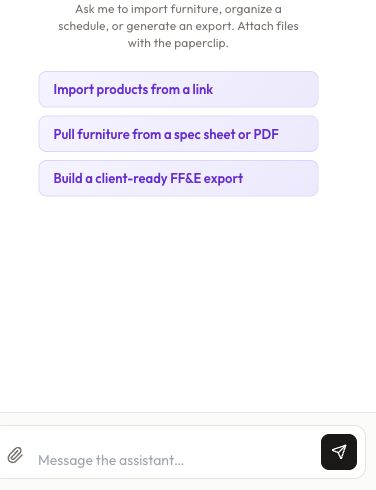
Open Casa Assistant or Import Studio, attach your specification, and describe the destination. This demonstration uses a fictional PDF and asks for review before adding its side table. Casa detected one direct-create item and no supplier links to analyze. The panel showed zero credits needed. Check the detected items and cost, then Continue to review. In Review before import, confirm the schedule, room and category. Our room was Office, but the category was blank. We selected Tables and Storage before choosing Import one item. Analysis alone does not add products. The final confirmation shows Imported one item and Import complete. Return to the project and inspect the saved card. The name, price and metric dimensions imported, but quantity became one instead of two and lead time was blank. The missing-image warning was expected because the source contained no photo. Review the result against the source. We changed the quantity to two and verified it after reload. You can edit missing details yourself. Check remaining lead time, image and currency information before treating the item as ready for a client.
Before you start
- Import Studio enabled for the workspace.
- Readable supplier PDF, specification sheet, or image.
- Available analysis credits.
Step by step
- 1
Attach the source
Open Import Studio in the room. Use the paperclip and describe what to extract and where it belongs.
- 2
Approve analysis
Review the detected items and displayed cost. Use Analyze or Continue to review as shown. Analysis and adding products are separate stages.
- 3
Review the draft
In Review before import, inspect names, images, quantities, schedules, categories, and rooms. Exclude duplicates and correct destinations.
- 4
Import ready items
Choose Import N items. Only ready, included rows are added. Rows still analyzing or missing a required room remain in the draft.
- 5
Check the project
Wait for Import complete, return to the project, and inspect the cards. For an interrupted session, reopen the conversation before uploading the source again.
See when imported products are added
Choose what to analyze
Review the detected items and displayed cost before approving analysis.
No products have been added yet.
Read the guide →Fictional example. Nothing is saved and no credits are used.
Check the result
Ready products are actually in the project, and any remaining draft rows are accounted for.
Keep exploring
Check credits and billing
Understand the cost shown before starting analysis or imports.
0:53 · Narrated tutorialRecover an incomplete import
Find the actual state before retrying or creating duplicates.
0:44 · Narrated tutorialReview and correct product details
Turn extracted information into a selection you can confidently use.
0:46 · Narrated tutorial