Review and organize
Find, move, assign, and duplicate products
Choose the right room, schedule, and kind of reuse.
Read the transcript
The product menu separates Move To, Assign to Rooms and Duplicate. These actions have different purposes. Check your saved card before using them. Move To lets you choose a schedule, destination room and category. Choose Move Product, then reopen the card and verify its destination and details. Assign to Rooms reuses the same card in selected rooms. Choose the destinations and Save Rooms. All rooms also includes rooms created later. The same product appeared in Dining Room and Office after reload, with the restored details intact. Use shared assignment when both rooms should refer to the same selection. Duplicate created a separate card in this session, but the copy lost its name and specifications. We also saw fields revert after a move. Review and repair the result before relying on it; the cause is still unconfirmed.
Before you start
- A project with products; edit access for changes.
Step by step
- 1
Find the item
Check all six schedule tabs. Clear search and filters. By Room and By Type change grouping; they do not move products.
- 2
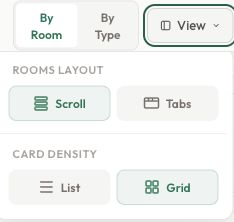
Choose a useful view
Open View. Scroll or Tabs controls room layout; List or Grid controls product presentation.
- 3
Move to a different destination
Use the product menu → Move To to change its room, schedule, or category. Editing the Room or Type text in the editor does not move the card.
- 4
Share one card across rooms
Use Assign to Rooms and Save Rooms. All rooms includes rooms created later.
- 5
Create a separate variant
Choose Duplicate when the new selection needs independent edits. Check the original and the copy before changing specifications.
Compare Move, Assign and Duplicate
Put the card in another room
Move the chair from Living Room to Dining Room to correct its destination.
One card in Dining Room.
Read the guide →Fictional example. Nothing is saved and no credits are used.
Check the result
Products appear in the intended destinations, with shared assignments and independent copies used deliberately.