Start with a real project
Your first reviewed schedule
Import a small selection, edit missing details yourself, and inspect the finished PDF.
Read the transcript
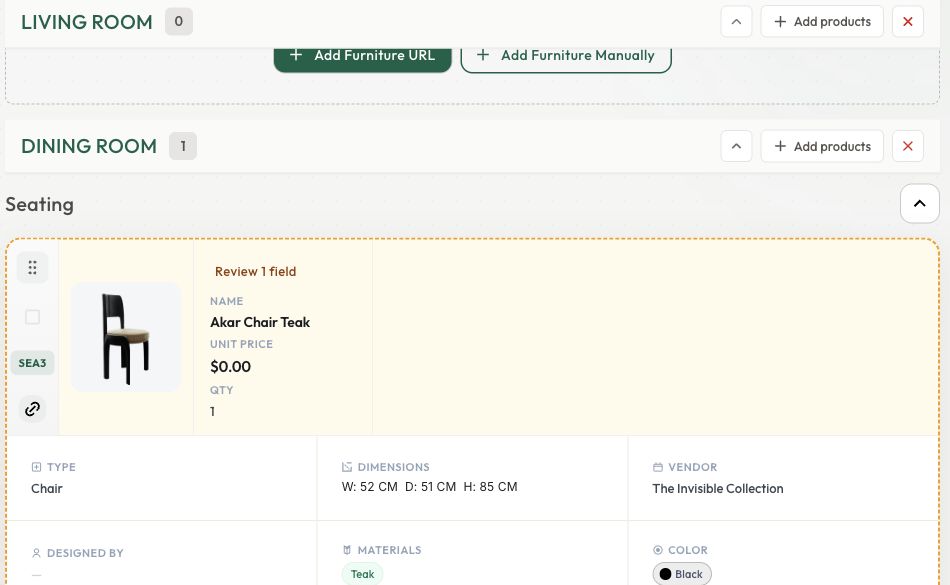
Let’s turn a few supplier links into a schedule. We’ll check the imported details, edit anything missing, and open the actual PDF. In your room, choose Paste product links, or Add Furniture URL in an empty room. Select the destination and paste individual product pages. Choose Next and check the detected links. Use Back if the list needs changing, then choose Confirm Import once. The success message confirms that the links were submitted. A product can still be loading, and its image can arrive after the text. Give it time, then check the result. Compare the product with the supplier page. Check the variant, price and currency, dimensions, and lead time. Imported values are a starting point for your review. You can edit the details yourself. Click a field on the card, enter the correction, and use the checkmark to save. Here, we’ve added the supplier’s lead time. For more detail, open the review editor. Choose Metric or Imperial before entering dimensions, and add any useful notes. If the supplier requires a quote, do not treat a zero price as free. Choose Save Changes. Reload the project to confirm your changes stayed. The dimensions and lead time are saved, and the image has arrived. The price still needs a supplier quote. Choose Export FF and E, then Export FF and E Schedules. Select Furniture Schedule and PDF. Check the rooms and columns you want, then choose Export. When the export shows Complete, choose Download dot PDF under Files. It may open in a new browser tab. Check every row and the currency labels, and resolve any remaining questions before sharing.
Before you start
- Workspace owner, or an existing project with edit access.
- A few individual supplier product URLs and available import credits.
Step by step
- 1
Open a project and room
Open your project and its Furniture schedule. The fresh-account example starts in Casa Demo Project → Living Room. Use Add Room to create another destination when you need one.
- 2
Start with a small batch
Use Paste product links in the fresh-account tour, or Add Furniture URL in an empty room. Select the destination room, paste individual product-page URLs, and choose Next. Check the detected list, then choose Confirm Import once.
- 3
Wait, then review the result
A success toast confirms submission. Wait for the product details and images, which can arrive at different times. Compare the intended variant, quantity, price and currency, dimensions and units, and lead time with the supplier page.
- 4
Edit missing details yourself
Click a card field for a quick inline edit and save with its checkmark. For more detail, open Review product details when a warning appears, or Edit Details from the product menu. Choose the correct dimension units, enter what you can verify, add notes, and choose Save Changes. A zero price can mean a supplier quote is still needed.
- 5
Check that your changes saved
Reload the project and reopen the card. Confirm that the corrected fields and room assignment persisted. In the example, quantity four and the manually entered metric dimensions remained after reload.
- 6
Generate and inspect your schedule
Choose Export FF&E → Export FF&E Schedules → Furniture Schedule. Select PDF, check rooms and columns, then Export. When the export shows Complete, choose Download .pdf under Files. It may open a PDF viewer in a new tab. Check the actual rows, images, quantities, units and currency labels before sharing.
Explore the project workflow
Create a project and its first room
Use one project for a design job. Add a room before importing.
Your project is open and a room is visible.
Read the guide →Fictional example. Nothing is saved and no credits are used.
Check the result
Your edits persist after reload, and the PDF shows the intended selection. Resolve any remaining price, currency or variant questions before sharing it as final.
Keep exploring
Export and inspect an FF&E schedule
Generate PDF or Excel and verify the actual download.
0:47 · Narrated tutorialImport supplier links
Bring products into Casa and distinguish submitted links from completed imports.
0:44 · Narrated tutorialSet up projects and rooms
Give your selections a clear home before importing.
0:38 · Narrated tutorialReview and correct product details
Turn extracted information into a selection you can confidently use.
0:46 · Narrated tutorial